How To Build a Chatbot
9/12/2025
A quick guide to building a chatbot using modern web technologies
How to Build a Chatbot for Your Business Using n8n and LLMs
One of the most effective ways to meet today's expectations of fast responses is with a chatbot. But chatbots aren't just for customer service—they can book appointments, collect feedback, qualify leads, and even handle internal automation.
You don't even need to be a coding wizard to build one. If you use n8n, an open-source workflow automation tool, and a large language model (LLM), you can spin up an intelligent chatbot with minimal effort.
What Is a Chatbot?
A chatbot is a software application that simulates human conversation. It can communicate via text or voice, and is often deployed on websites, messaging platforms (like WhatsApp or Facebook Messenger), or internal tools.
There are two main types of chatbots:
- Rule-Based Bots – Follow predefined logic (like "If user says X, reply with Y").
- AI-Powered Bots – Use natural language processing (NLP) and machine learning models (like GPT-4) to interpret questions and generate smart responses.
Why Should Your Business Use a Chatbot?
Here are a few reasons businesses (big and small) should consider adding a chatbot:
- 24/7 Availability: Chatbots don’t sleep.
- Lead Qualification: Engage visitors in real time.
- Customer Support: Answer common FAQs instantly.
- Internal Automation: Help your team access documents, schedule meetings, or retrieve reports.
- Cost Savings: Reduce the need for live support agents.
Tools We'll Use
- n8n – Open-source automation platform for connecting services and building workflows.
- LLM of your choice:
- OpenAI GPT-3.5 or GPT-4 (cloud-based, powerful)
- Ollama (runs models like Llama3 locally on your own machine)
Building a Chatbot with n8n + LLM
Step 1: Install and Set Up n8n
You can run n8n via Docker, npm, or n8n Cloud. For local development:
npm install -g n8n
n8n
Then open http://localhost:5678 to access the UI and then click on the Create Workflow button. Alternatively, you can deploy n8n permanently using Docker Compose or on services like Fly.io or Render. Or you can always go directly to n8n.io and sign up to use their cloud version without having to install anything.
Using N8N
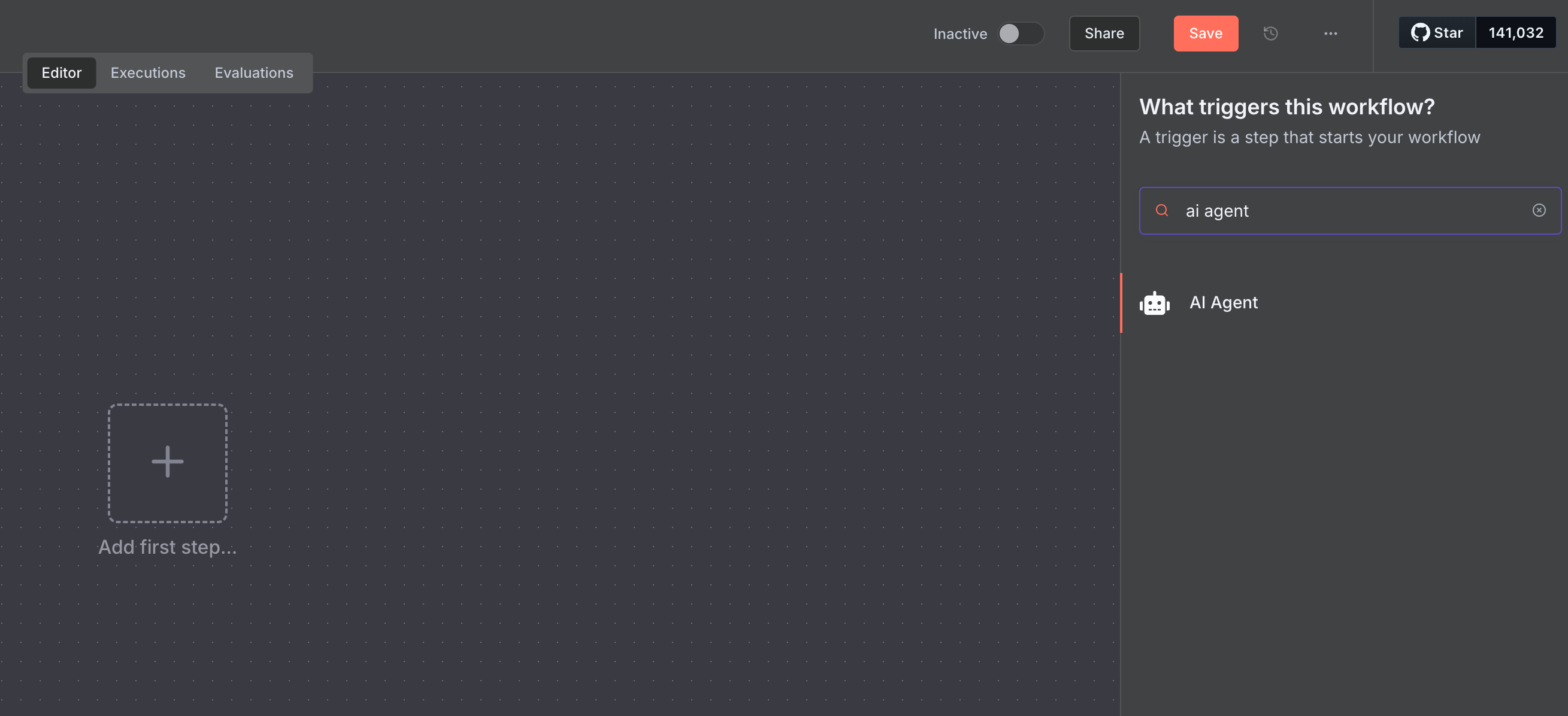
N8N works through modular nodes that perform specific tasks. These nodes are placed on a canvas and are arranged like a flow chart. After clicking on "Add first step", you can then search for the AI Agent node. After you select it, you will see a configuration page, you can click on Back to Canvas for now. It's best to have a good layout of the nodes prior to configuring each one.
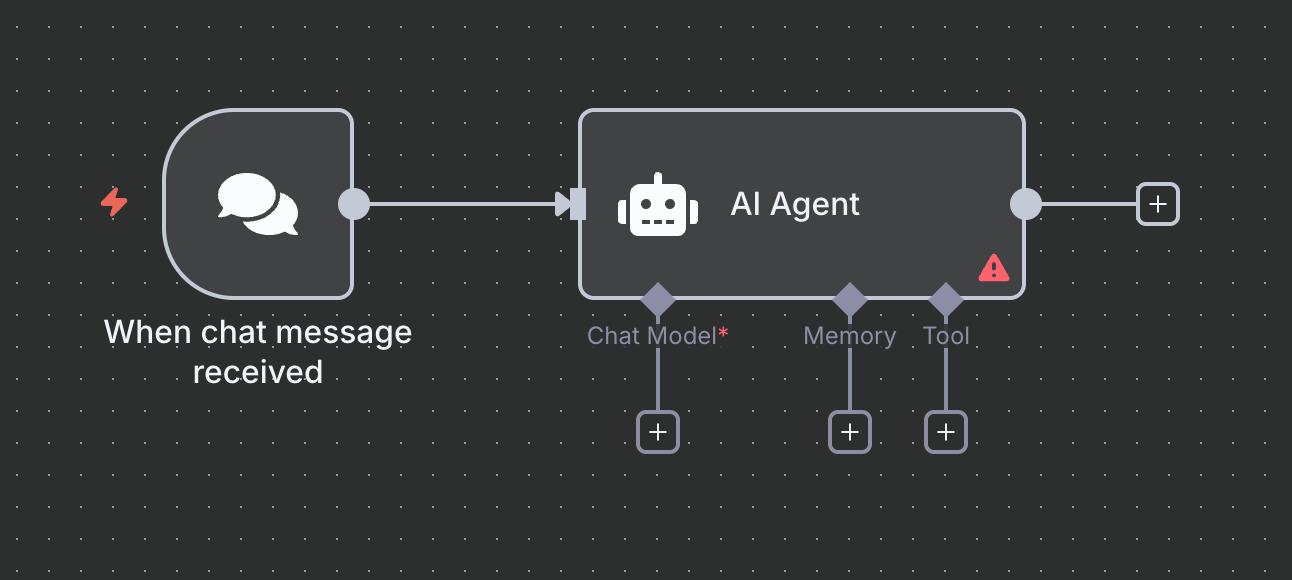
Repeat this step to add a Chat Trigger node. The Chat Trigger node will feed chat messages into the AI Agent. You will see additional hooks for the AI Agent; a Chat Model, Memory, and Tool.
Add Memory
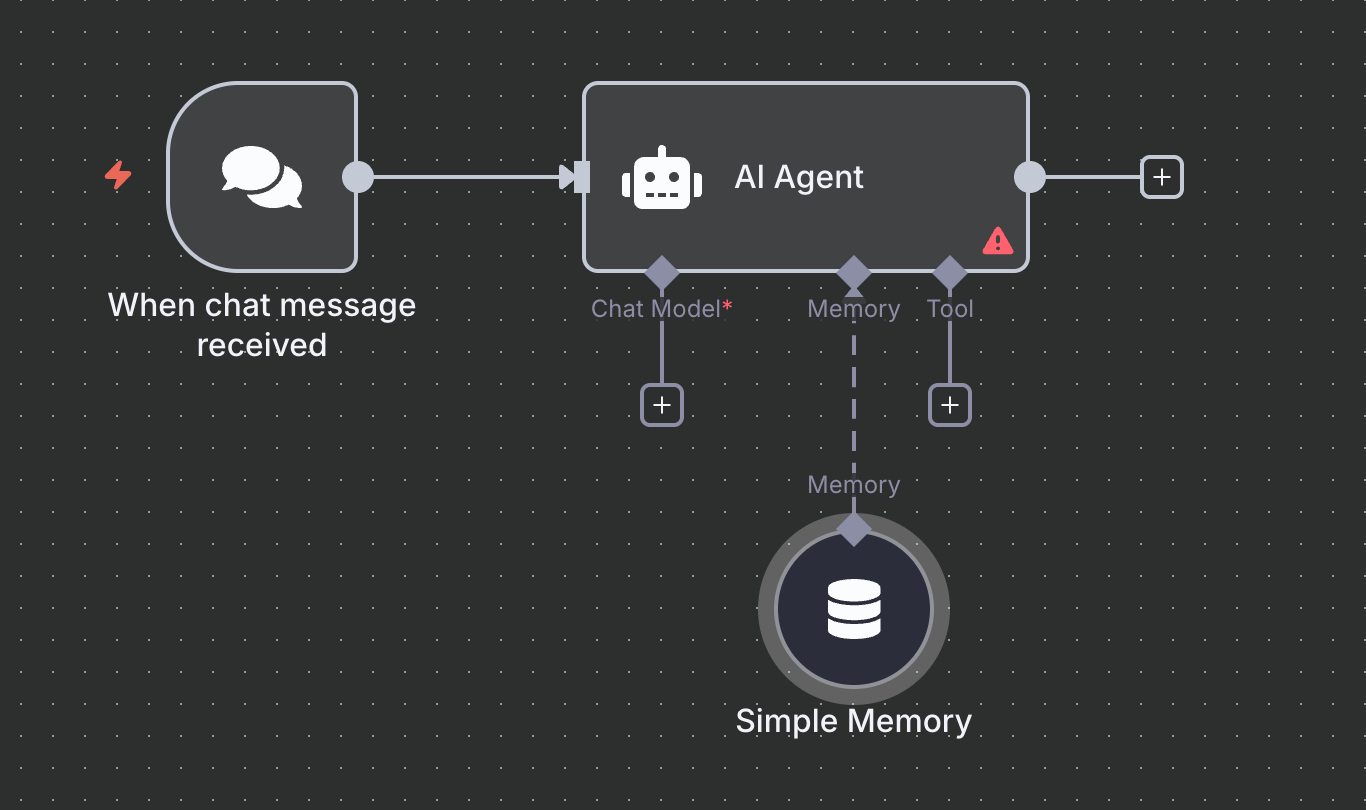
To make the chatbot remember past messages store the user chat history in a database or just use the simple memory node. This node retrieves recent messages and passes them as part of the prompt to the LLM. The chatbot will now be context aware and capable of having a short-term memory.
Connect an LLM
You can select from many different LLMs. When you click on the Chat Model hook, n8n will show a list of supported models. For example: Anthropic Chat, Deepseek Chat, Google Gemini, Ollama Chat, and OpenAI Chat. When you select one, the model will be connected to the AI Agent. As before, click out of the configuration box, to proceed with adding a tool.
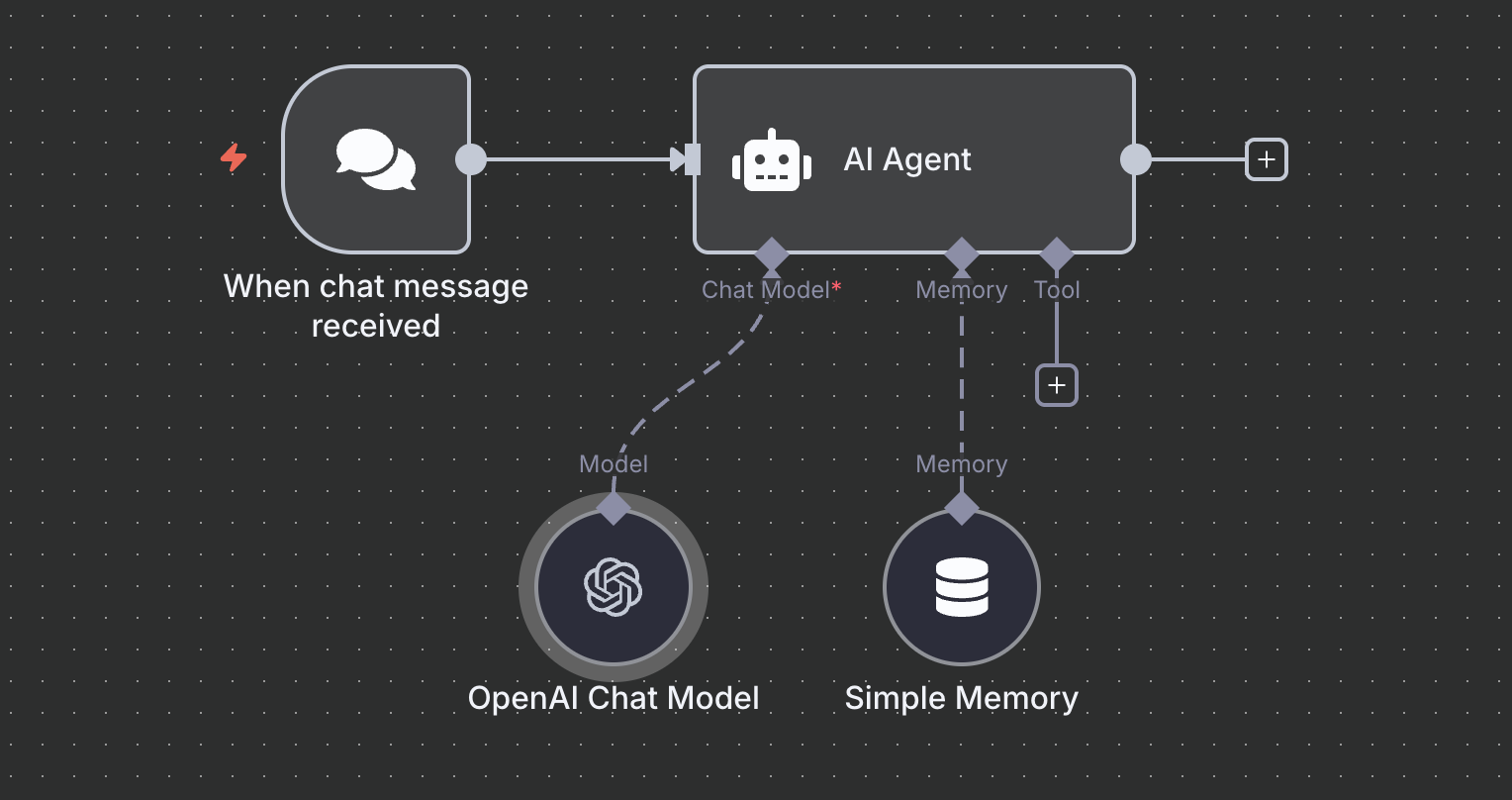
Connect a tool
LLM models are capable of providing sophisticated text answers, but there are a lot of things they cannot do. They cannot gain new information from the web, they cannot do calculations, they cannot send emails, or schedule appointments for you. But if you provide tooling to your LLM, they are actually able to use these tools to accomplish all of those tasks. In the example below, we have added the Google Calendar node.
With the Google Calendar node attached, the AI agent node is able to use it to query the calendar and see your upcoming appointments. Now, whenever you are chatting with your agent, it can look in your calendar when you ask it what appointments you have this week or when your next calendar event is.
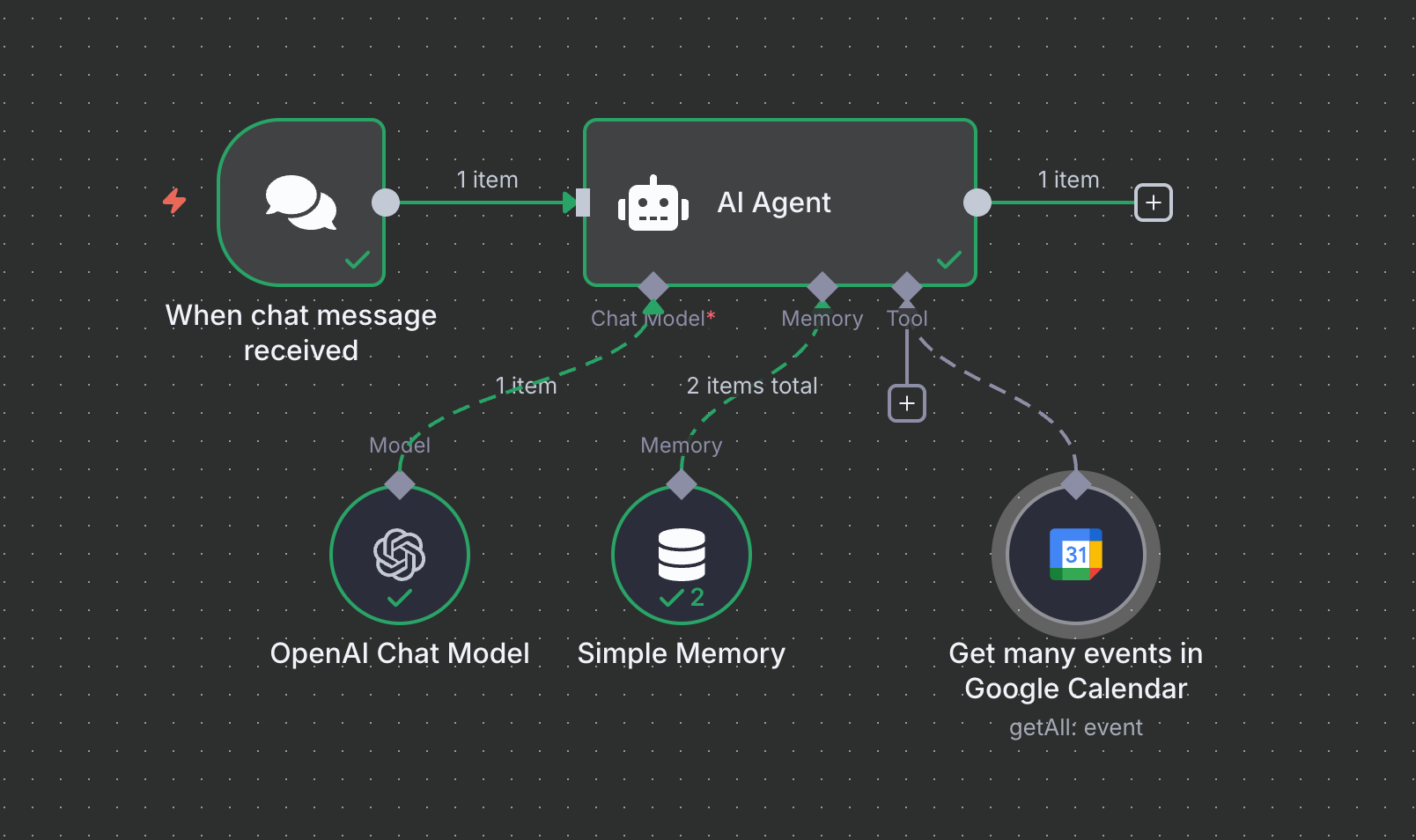
Final N8N workflow template
Each node needs to be configured, but the configuration settings for a lot of nodes is very straight forward. If you are setting up a node associated with a service, for example the Open AI Chat node, these nodes will require credentials for whatever service you will be connecting to. Finally, you can easily set up the configuration above by importing the template shown here. N8N has an import from file feature available within a workflow. Simply import the template, set the credentials, and you should have a working workflow.
{
  "name": "My workflow",
  "nodes": [
    {
      "parameters": {
        "options": {}
      },
      "type": "@n8n/n8n-nodes-langchain.chatTrigger",
      "typeVersion": 1.3,
      "position": [
        0,
        0
      ],
      "id": "8b1252e8-5b8b-48f0-9c92-b74c803e3d22",
      "name": "When chat message received",
      "webhookId": "e6e69aa4-1825-446d-afb0-09b6d300337b"
    },
    {
      "parameters": {
        "options": {
          "systemMessage": "You are a helpful assistant"
        }
      },
      "type": "@n8n/n8n-nodes-langchain.agent",
      "typeVersion": 2.2,
      "position": [
        208,
        0
      ],
      "id": "7dad9ad3-efd8-43e8-b177-918821c5cf93",
      "name": "AI Agent"
    },
    {
      "parameters": {},
      "type": "@n8n/n8n-nodes-langchain.memoryBufferWindow",
      "typeVersion": 1.3,
      "position": [
        224,
        208
      ],
      "id": "5b84878d-fbf1-4a06-bae5-24e45d1493c4",
      "name": "Simple Memory"
    },
    {
      "parameters": {
        "operation": "getAll",
        "calendar": {
          "__rl": true,
          "value": "your@email.com",
          "mode": "list",
          "cachedResultName": "your@email.com"
        },
        "timeMax": "={{ $now.plus({ week: 8 }) }}",
        "options": {}
      },
      "type": "n8n-nodes-base.googleCalendarTool",
      "typeVersion": 1.3,
      "position": [
        448,
        208
      ],
      "id": "0fc3b0ff-f36d-4de4-9069-b150ab219548",
      "name": "Get many events in Google Calendar",
      "credentials": {
        "googleCalendarOAuth2Api": {
          "id": "5iCJ9aLVrY4W9F8G",
          "name": "Google Calendar account"
        }
      }
    },
    {
      "parameters": {
        "model": {
          "__rl": true,
          "mode": "list",
          "value": "gpt-4.1-mini"
        },
        "options": {}
      },
      "type": "@n8n/n8n-nodes-langchain.lmChatOpenAi",
      "typeVersion": 1.2,
      "position": [
        64,
        208
      ],
      "id": "512f550e-7d57-4549-9b67-932334cb5b50",
      "name": "OpenAI Chat Model",
      "credentials": {
        "openAiApi": {
          "id": "wZHoIkICRn9PbK7u",
          "name": "OpenAi account"
        }
      }
    }
  ],
  "pinData": {},
  "connections": {
    "When chat message received": {
      "main": [
        [
          {
            "node": "AI Agent",
            "type": "main",
            "index": 0
          }
        ]
      ]
    },
    "AI Agent": {
      "main": [
        []
      ]
    },
    "Simple Memory": {
      "ai_memory": [
        [
          {
            "node": "AI Agent",
            "type": "ai_memory",
            "index": 0
          }
        ]
      ]
    },
    "Get many events in Google Calendar": {
      "ai_tool": [
        [
          {
            "node": "AI Agent",
            "type": "ai_tool",
            "index": 0
          }
        ]
      ]
    },
    "OpenAI Chat Model": {
      "ai_languageModel": [
        [
          {
            "node": "AI Agent",
            "type": "ai_languageModel",
            "index": 0
          }
        ]
      ]
    }
  },
  "active": false,
  "settings": {
    "executionOrder": "v1"
  },
  "versionId": "29ee73ad-8178-483a-b342-d0e1d1574c81",
  "meta": {
    "templateCredsSetupCompleted": true,
    "instanceId": "12345678-abcd-efgh-ijkl-9876543210ab"
  },
  "id": "PKCoccyb4taAHcV1",
  "tags": []
}
Deploy It
If you replace the Chat node with a Webhook node, you can integrate the workflow with any website or service. The webhook can be called from any service or website, for example:
- A web chat interface (e.g., a form or React component)
- Telegram or Slack (via their respective n8n nodes)
- A CRM or ticketing system
For some services like Telegram and Slack, add a Telegram Trigger or Slack Trigger node instead of a Webhook to use your AI Agent more easily with those services.
Don't forget about security
The build we show here is just a starting point and should never be used in a production system. Have a look at our endpoint security post for a more detailed discussion about security.
Conclusion
Building a smart chatbot doesn’t require a huge team or complex backend code. With n8n, you can visually design chatbot workflows, and with LLMs like OpenAI or Ollama, you can provide intelligent, natural conversations for users.
Whether you're supporting customers, qualifying leads, or just automating internal tasks, a chatbot can be a game-changer for your business. We use n8n along with other tools here at dkarim.cloud to implement solutions for small and medium businesses looking to implement AI automation. Talk to our chatbot here.